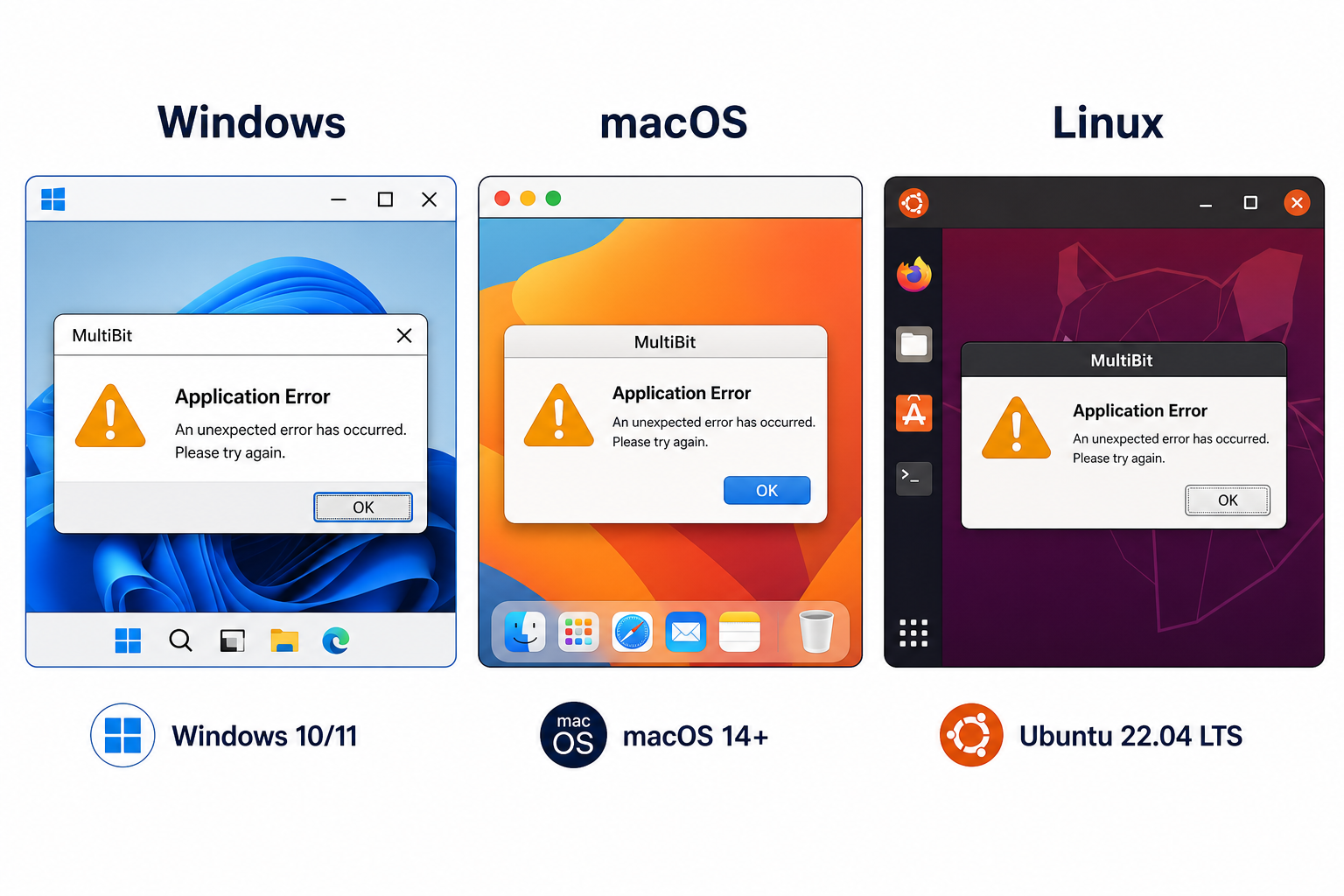
MultiBit Classic Wallet Not Opening
MultiBit Classic was the original 2011–2015 version. If MultiBit Classic wallet is not opening on your machine, the cause is almost always one of these four:
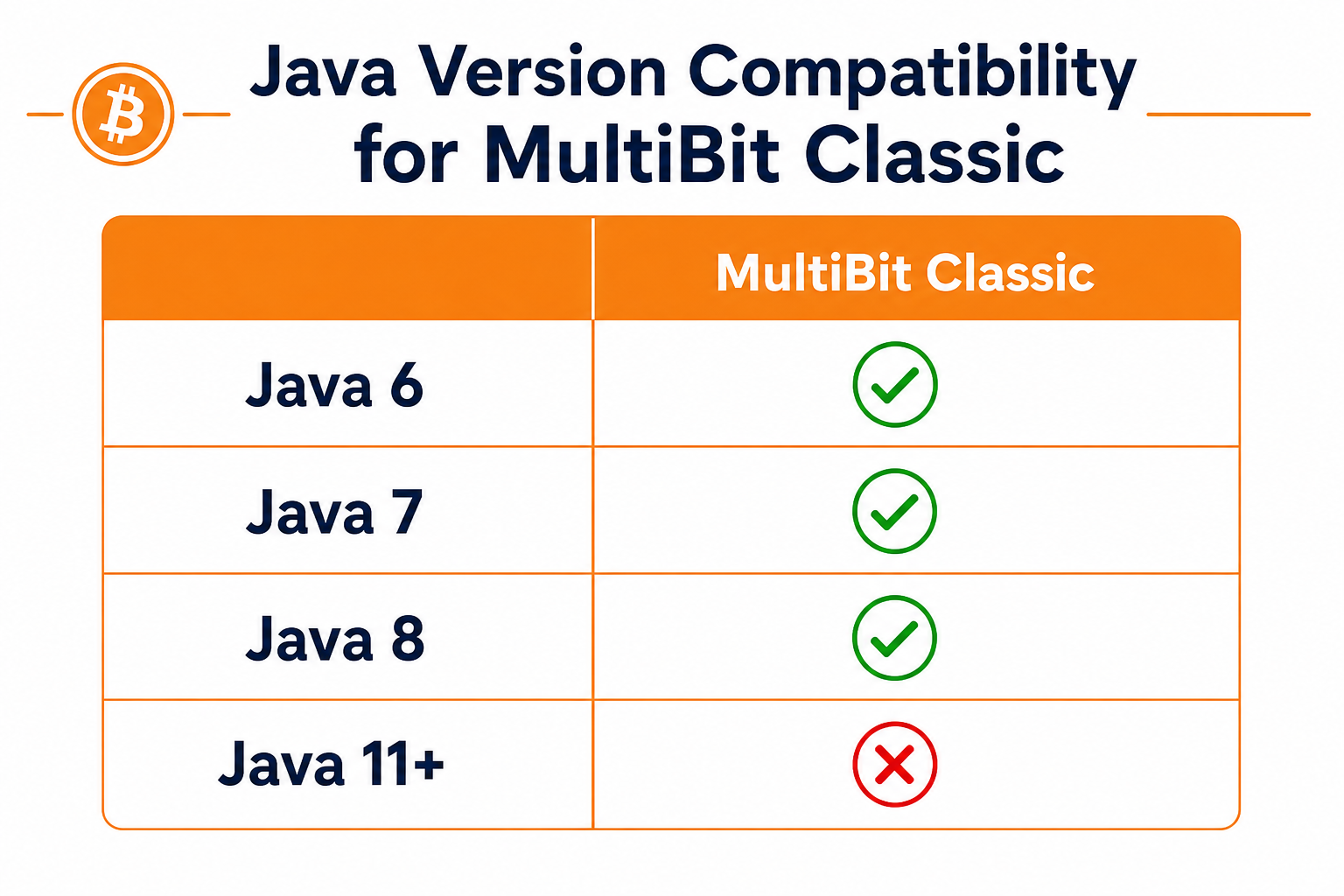
- •Java 9+ installed: Classic needs Java 7 or 8. Newer Java versions silently break it. Install Java 8 and set it as the default.
- •32-bit binary on macOS Catalina+: Classic is 32-bit and will not run on macOS 10.15 or newer. Use an older Mac, a VM, or recover keys without opening the app.
- •Corrupt
multibit.spvchain: Delete it from%APPDATA%\MultiBit\(Windows),~/Library/Application Support/MultiBit/(Mac) or~/.multibit/(Linux). - •Antivirus quarantine: Windows Defender often flags Classic because it's old and unsigned. Restore from quarantine and add an exception.
If none of these work, skip the app entirely and use the wallet file recovery guide to extract private keys directly from your .wallet and .key files.
MultiBit HD Wallet Not Opening
MultiBit HD (2015–2017) bundles its own Java runtime, so the Java version problem is rarer. When MultiBit HD wallet is not opening, look at these causes first:
- •System Java conflicts with bundled Java: Uninstall or temporarily disable system-wide Java if HD refuses to launch.
- •Locked
.wallet.aes: If the app crashed previously it may have left a lock file in the wallet folder. Close MultiBit fully and remove any*.lockfile. - •Corrupt SPV chain: Delete
spvchaininside%APPDATA%\MultiBitHD\[wallet-id]\(or the equivalent on Mac/Linux). - •Gatekeeper / Defender block: Same as Classic — the binary is unsigned and modern OSes block it by default.
Have your 12-word seed? You don't need MultiBit HD to recover. Use the seed recovery guide to restore directly into Electrum.
Why MultiBit Fails to Open
MultiBit was built on Java technology and depends on specific Java Runtime Environment (JRE) versions that are increasingly incompatible with modern operating systems. The OS-by-OS sections below cover the exact fixes for both Classic and HD.
Windows Troubleshooting
Step 1: Check Java Version
MultiBit Classic requires Java 7 or 8. MultiBit HD bundles its own Java but may still conflict with system Java.
# Open Command Prompt and check Java version:
java -version
If you see Java 9 or higher, you may need to install Java 8 separately and configure MultiBit to use it.
Step 2: Run as Administrator
Right-click the MultiBit shortcut or executable and select "Run as administrator." This resolves permission issues that prevent the wallet from accessing its data files.
Step 3: Check Windows Defender / Antivirus
Windows Defender and third-party antivirus programs sometimes flag MultiBit as suspicious because it's old and unsigned. Check your quarantine folder and add an exception for:
C:\Program Files\MultiBit Classic\
C:\Program Files\MultiBit HD\
%APPDATA%\MultiBit\
%APPDATA%\MultiBitHD\
Step 4: Delete SPVChain File
A corrupted blockchain cache often prevents MultiBit from starting. Deleting the SPV chain file forces a fresh sync (though syncing may fail since MultiBit's servers are offline).
# MultiBit Classic:
%APPDATA%\MultiBit\multibit.spvchain
# MultiBit HD:
%APPDATA%\MultiBitHD\[wallet-id]\spvchain
Navigate to these folders in File Explorer (paste the path in the address bar) and delete the .spvchain file. Then try opening MultiBit again.
Step 5: Use Compatibility Mode
For Windows 10/11, try running MultiBit in compatibility mode:
- Right-click the MultiBit executable
- Select Properties → Compatibility tab
- Check "Run this program in compatibility mode for:"
- Select Windows 7 or Windows 8
- Also check "Run as administrator"
- Click Apply and OK
macOS Troubleshooting
Step 1: Check macOS Version
Click the Apple menu → About This Mac to check your version. If you're on Catalina (10.15) or later, MultiBit Classic will not run. Your options are:
- • Use an older Mac or virtual machine with macOS Mojave (10.14) or earlier
- • Boot into an older macOS partition if you have one
- • Recover your Bitcoin using manual methods instead of opening MultiBit
Step 2: Allow Unidentified Developer
macOS blocks applications from unidentified developers by default. To open MultiBit:
- Try to open MultiBit (it will be blocked)
- Open System Preferences → Security & Privacy
- Click the lock icon and enter your password
- Click "Open Anyway" next to the MultiBit message
Step 3: Remove Quarantine Attribute
macOS adds a quarantine flag to downloaded applications. Remove it using Terminal:
xattr -d com.apple.quarantine /Applications/MultiBit.app
Step 4: Delete SPVChain File
The blockchain cache is located at:
# MultiBit Classic:
~/Library/Application Support/MultiBit/multibit.spvchain
# MultiBit HD:
~/Library/Application Support/MultiBitHD/[wallet-id]/spvchain
In Finder, press Cmd+Shift+G and paste the path to navigate there. Delete the spvchain file.
Linux Troubleshooting
Step 1: Install Java 8
MultiBit requires Java 8. Install OpenJDK 8:
# Ubuntu/Debian:
sudo apt install openjdk-8-jre
# Fedora:
sudo dnf install java-1.8.0-openjdk
# Arch:
sudo pacman -S jre8-openjdk
Step 2: Set Java 8 as Default
If you have multiple Java versions installed, set Java 8 as default:
sudo update-alternatives --config java
# Select the Java 8 option from the list
Step 3: Run from Terminal
Running MultiBit from terminal shows error messages that help diagnose the problem:
cd /path/to/multibit
./multibit-hd &
# Or for Classic:
java -jar multibit-exe.jar
Step 4: Check File Permissions
Ensure MultiBit has proper permissions:
chmod +x /path/to/multibit-hd
chmod -R 755 ~/.multibit
Step 5: Delete SPVChain File
# MultiBit Classic:
rm ~/.multibit/multibit.spvchain
# MultiBit HD:
rm ~/.MultiBitHD/[wallet-id]/spvchain
Locating Your Wallet Files
Even if MultiBit won't open, your Bitcoin isn't lost. The private keys are stored in wallet files on your computer. Here's where to find them:
| Version | Windows | macOS | Linux |
|---|---|---|---|
| Classic | %APPDATA%\MultiBit\ | ~/Library/Application Support/MultiBit/ | ~/.multibit/ |
| HD | %APPDATA%\MultiBitHD\ | ~/Library/Application Support/MultiBitHD/ | ~/.MultiBitHD/ |
Look for files with these extensions: .wallet,.key,.wallet.aes
If Nothing Works: Recovery Options
If you've tried all the troubleshooting steps and MultiBit still won't open, don't panic. Your Bitcoin is stored in wallet files, not in the MultiBit application. You can recover your funds through:
Wallet File Recovery
Extract private keys from .wallet and .key files for import to modern wallets
Private Key Import
Import extracted private keys into modern wallets like Electrum
Seed Phrase Recovery
For MultiBit HD users with 12 or 24 word recovery phrases
Migrate to Electrum
Complete guide to moving your Bitcoin to a modern, supported wallet
Important Reminder
MultiBit is discontinued software that will never receive updates or security patches. Even if you get it working, you should immediately transfer your Bitcoin to a modern wallet like Electrum, Sparrow, or a hardware wallet.
The goal should be recovery, not continued use of MultiBit. Once you've successfully opened MultiBit and verified your balance, export your private keys and migrate to a supported wallet.